Introduction
Let’s first Create the docker Container using BCContainerHelper Module.
If you would like to know how to install the module
I got you covered.
Check this Blog out https://sivagurumuralidharan.com/2023/10/20/how-to-install-bccontainerhelper/
Creating Docker Container with LS Setup
Using the New-BcContainerWizard in Powershell, Get started with creating the container.
I used to the Below Mentioned Code to create my container.
$containerName = ‘bc133’
$password = ‘P@ssw0rd’
$securePassword = ConvertTo-SecureString -String $password -AsPlainText -Force
$credential = New-Object pscredential ‘admin’, $securePassword
$auth = ‘UserPassword’
$artifactUrl = Get-BcArtifactUrl -type ‘OnPrem’ -version ‘13.3’ -country ‘w1’ -select ‘Latest’
$bakFile = [database Backup (.bak) path]
$licenseFile = [License (.flf) Path]
New-BcContainer `
-accept_eula `
-containerName $containerName `
-credential $credential `
-auth $auth `
-artifactUrl $artifactUrl `
-bakFile $bakFile `
-licenseFile $licenseFile `
-isolation ‘hyperv’ `
-includeCSIDE -doNotExportObjectsToText `
-myScripts @(“C:\Setup\ls-central-13-04-00-852-client-components.exe”,”C:\Setup\ls-central-13-04-00-852-service-components.exe”)`
-updateHosts
Please note that the myScripts Parameter has to be manually mentioned after using the New-BccontainerWizard to generate the Powershell Script.
The Client-Components and the Service-Components Executable file’s respective paths are mentioned in the MyScripts Parameter with a comma separating the paths. This is to ensure that both the Setup files will be copied to the Container upon creation and will be stored in “C:\Run\my” Folder in the container.
Installing LS Retail in Docker Container
Once the Container has been created and the necessary files have been copied into the container, it’s now time to install LS Retail.
Using the Terminal Provided in the Docker Desktop Client, navigate to “C:\Run\my” Folder
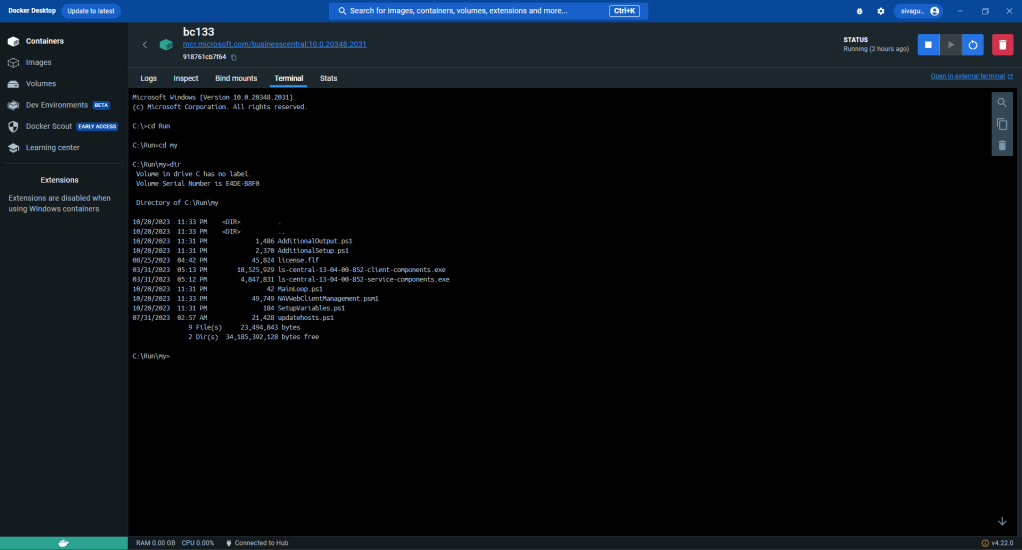
Run the Following Commands in the Container Terminal
"ls-central-13-04-00-852-client-components.exe" /silent /tasks=BC130,HardwareStation,DualDisplay,Opos,Start"ls-central-13-04-00-852-service-components.exe" /silent /tasks=BC130The two commands should install LS Retail rather quickly without asking the user for any inputs.
Hope the read was worth your time. Thanks for Reading.
Dynamics 365 Business Central: How to Find Vendor No. with Vendor Name
Who this is for: AL developers building custom tables in Business Central who want users to search by vendor name instead of memorizing vendor codes. Most tables in Business Central use “Vendor No.” as a foreign key because it is the primary key of the Vendor table — stable, unique, and fast to look up.…


How to Create Excel File in Business Central
Introduction Let’s assume that we have a situation where I need to export Customer data from Business Central in an Excel Sheet. The simplest way would be to use the Export Functionality in Business Central But this would require Human interaction with the system. Let’s Automate this using the Excel Buffer Table in Business Central.…

How to Create Server Instance in Business Central
Introduction Business Central comes with a default Server Instance which can be configured to our requirements during the Business Central installation process. What if we need more server instances and with Business Central Administration Tool deprecated, we have to use the Command Line Interface. The following Script Example Uses Business central 22 Version, but it…


Leave a Reply